How to Navigate Long ChatGPT Conversations Fast
Quick Answer
ChatGPT has no table of contents, so finding one answer in a 200-message chat means scrolling. AI Workspace Pro's Smart Conversation Outline adds a sidebar listing every message — open it with Ctrl+. (Cmd+. on Mac), click any entry to jump straight to that message, and filter or search within the thread.
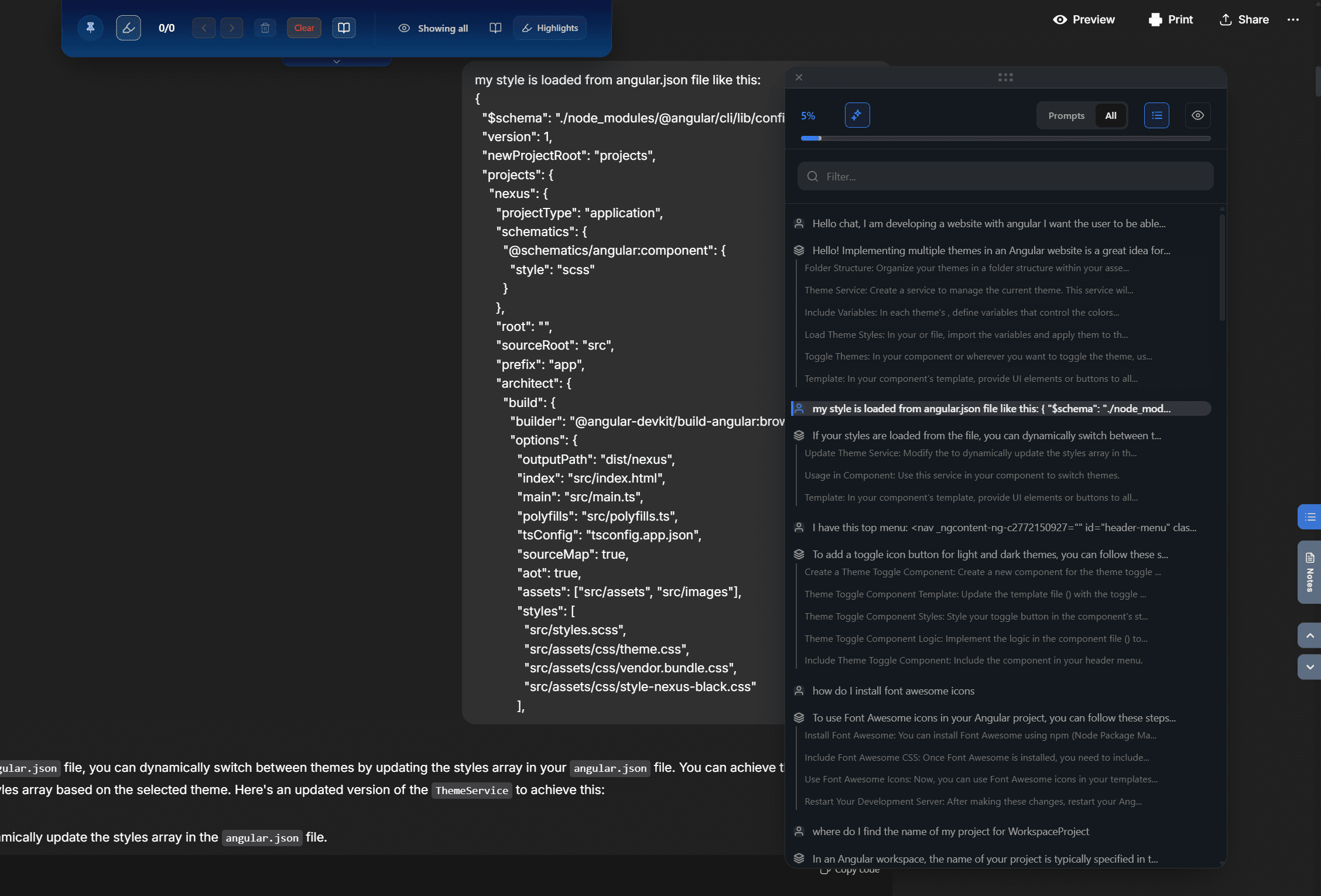
Long ChatGPT conversations turn into scroll marathons. You know the AI gave you the right SQL query somewhere around message 60, but between you and it sit thousands of pixels of follow-ups, corrections and tangents. ChatGPT offers no outline, no jump-to-message, no in-conversation search.
And the longer the thread gets, the worse the scrolling itself becomes, because the browser is rendering every message at once. Here's how to fix both problems.
1Install AI Workspace Pro
Get AI Workspace Pro for Chrome, Edge or Firefox. The Smart Conversation Outline is part of the free core feature set and works on ChatGPT, Claude and Grok. No account or setup needed — open any conversation and it's available.
2Open the outline with Ctrl+. and jump anywhere
Press Ctrl+. (Cmd+. on Mac) inside a conversation. A sidebar table of contents appears, listing every message in the thread. Click any entry and you jump directly to that message — no scrolling, no guesswork. It's the difference between reading a book with and without a table of contents. Details are on the Smart Conversation Outline page.
3Filter and search within the conversation
In a 150-message thread, even an outline gets long. Filter it to show only your prompts or only the AI's responses — useful when you're hunting for a question you asked rather than an answer. Or type a keyword to search inside the outline and narrow it to matching messages. Hunting for that SQL query becomes: open outline, type JOIN, click.
4Pair it with highlights and thread trimming
Two companions make long threads fully manageable. Text highlighting (Ctrl+Shift+H) marks important passages in one of seven colors, persistent across reloads — flag the good answers as you go and they're trivial to find later. And if the conversation has grown so long that scrolling stutters, Smart Thread Trimming hides older messages from the page (without deleting anything) for roughly 73% memory reduction and 80% faster scrolling. More on that in the ChatGPT lag guide.
Ready to fix this for good?
AI Workspace works inside ChatGPT, Claude & Grok. Free to install, no account required, 100% local-first.
Add to Chrome – Free4.5★ on Chrome Web Store • Free forever core features
Frequently asked questions
Does ChatGPT have a table of contents for conversations?
No. ChatGPT renders a conversation as one continuous page with no outline, anchors or jump navigation. A sidebar table of contents requires an extension — AI Workspace Pro's Smart Conversation Outline adds one with one-click jumps to any message.
How do I jump to a specific message in a long ChatGPT chat?
With AI Workspace Pro installed, press Ctrl+. (Cmd+. on Mac) to open the conversation outline, then click the message you want. You can also filter the outline by speaker or search it by keyword to find the right entry faster.
Why does ChatGPT get slow in long conversations?
The browser keeps every message in the page's DOM, so a 300-message thread forces it to manage an enormous page. Smart Thread Trimming hides older messages from rendering — not from your history — cutting memory use by about 73%.
Does the conversation outline work on Claude and Grok too?
Yes. AI Workspace Pro runs on chatgpt.com, claude.ai and Grok, and the Smart Conversation Outline works the same way on each platform.
Related feature
Smart Conversation Outline