How to Save Prompts in ChatGPT and Reuse Them Fast
Quick Answer
ChatGPT has no built-in way to save and reuse prompts — most people keep them in a notes app and paste them in. AI Workspace Pro adds a prompt library directly inside ChatGPT: save a prompt once, then type / in the chat input to search and insert it instantly, with {{variables}} filled in on the fly.
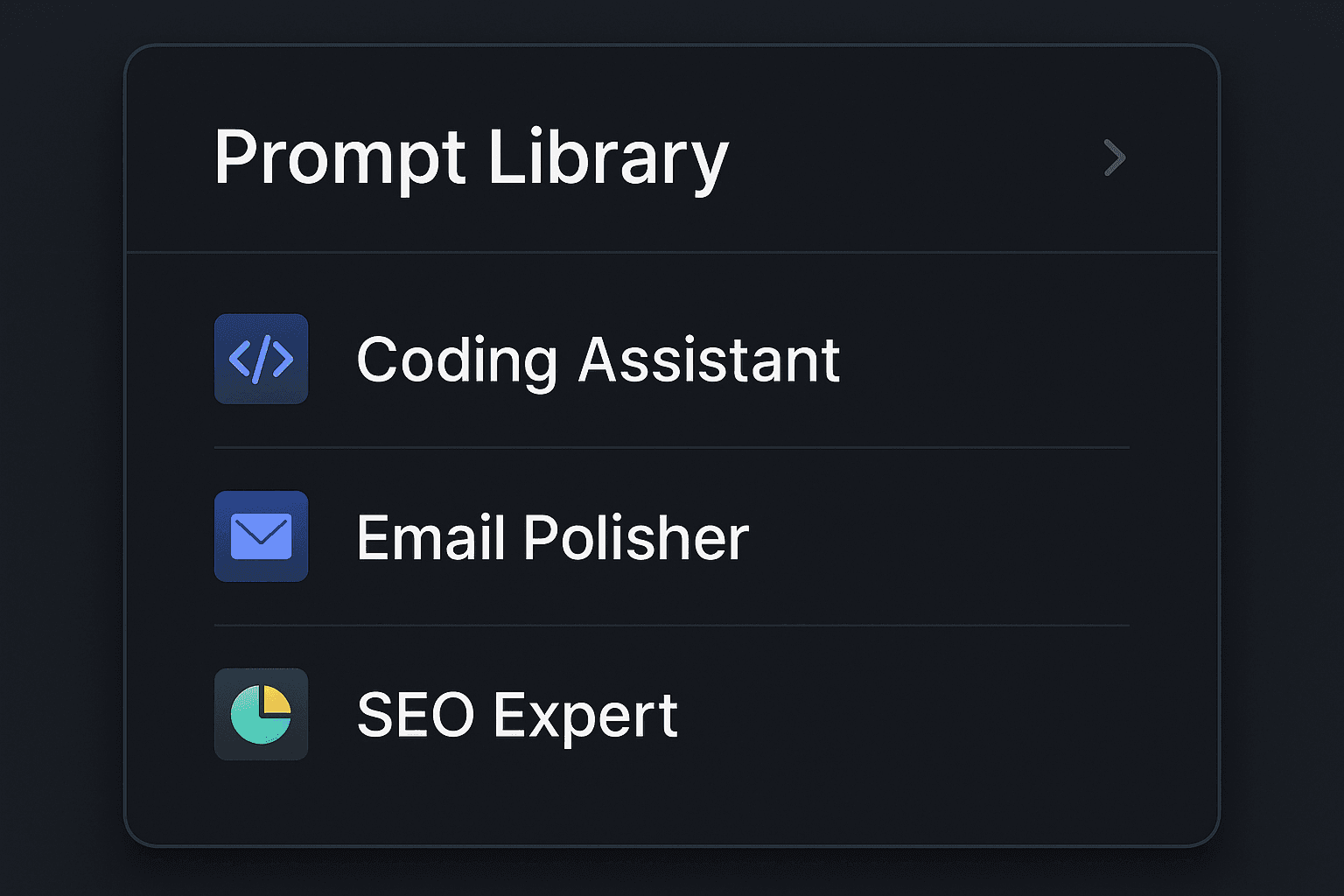
If you use ChatGPT for real work, you have prompts you reuse constantly — a blog outline format, a code review checklist, a client email tone. ChatGPT gives you nowhere to keep them. So they live in a Notes file or a Google Doc, and every use means switching tabs, copying and pasting.
A prompt library inside ChatGPT removes that loop entirely. Here's how to set one up in a few minutes.
1Install AI Workspace Pro
Install AI Workspace Pro from the Chrome Web Store (Edge and Firefox versions exist too). The Prompt Library is part of the free core features and works across ChatGPT, Claude and Grok — save a prompt once, use it on all three.
2Save your first prompts with tags and folders
Open the prompt library and add the prompts you currently keep in your notes app. Each prompt gets a name, optional tags and a folder, so Writing → Blog outlines and Code → Review checklist stay separated. Start with your five most-used prompts — the ones you'd be annoyed to retype today.
3Type / in the chat input to insert any prompt
This is the part that changes daily usage. Type / in ChatGPT's input box, start typing a prompt name, and a searchable picker appears. Select the prompt and it's inserted, ready to send or edit. No tab switching, no clipboard. Pin your favorites and they sit at the top of the picker every time.
4Build templates with {{variables}}
For prompts you reuse with small changes, add variables: Write a meta description for {{topic}} targeting {{keywords}}. When you insert the prompt, the extension asks you to fill each variable, then drops in the completed text. One template replaces a dozen near-duplicate prompts. You can also export your library to JSON or CSV for backup or to share with teammates — handy if you organize your prompt work alongside workspaces.
Ready to fix this for good?
AI Workspace works inside ChatGPT, Claude & Grok. Free to install, no account required, 100% local-first.
Add to Chrome – Free4.5★ on Chrome Web Store • Free forever core features
Frequently asked questions
Can you save prompts in ChatGPT natively?
No. ChatGPT has custom instructions that apply to every chat, but no library for saving and inserting individual prompts on demand. Reusable prompts require an extension or manual copy-paste from an external document.
How many prompts can I save for free?
AI Workspace Pro's free tier includes the core prompt library with slash insertion, tags, folders and pinned favorites. Pro ($7.99/month billed annually, or $9.99 monthly) removes limits with unlimited prompts plus extras like encrypted vaults.
Do saved prompts work on Claude and Grok too?
Yes. Your prompt library is shared across ChatGPT, Claude and Grok, so a prompt saved while working in ChatGPT is available from the same library when you switch to claude.ai.
What are prompt variables and why use them?
Variables are placeholders like {{topic}} inside a saved prompt. On insertion, you're prompted to fill them in, producing a finished prompt each time. They turn one well-written template into a reusable tool instead of many slightly different copies.
Related feature
Prompt Library